How to Convert Excel, Word, and PowerPoint to PDF Without Uploading Your Data
Converting Excel sheets, Word documents and PowerPoint presentations to PDF is common, but uploading private files to random websites can be risky.
Waarom privébestanden niet uploaden?
- Private documents should stay on your device.
- Avoid upload tools for IDs, payments, school or office data.
- Use built-in PDF options first.
Method 1: Use Save As in Word
- Open your Word document.
- Click File.
- Click Save As.
- Select PDF.
- Save the file.
Method 2: Use Export in Excel or PowerPoint
- Open Excel or PowerPoint.
- Click File.
- Click Export.
- Choose PDF or Create PDF/XPS.
- Save your PDF.
Method 3: Use Print to PDF for Word, Excel and PPT
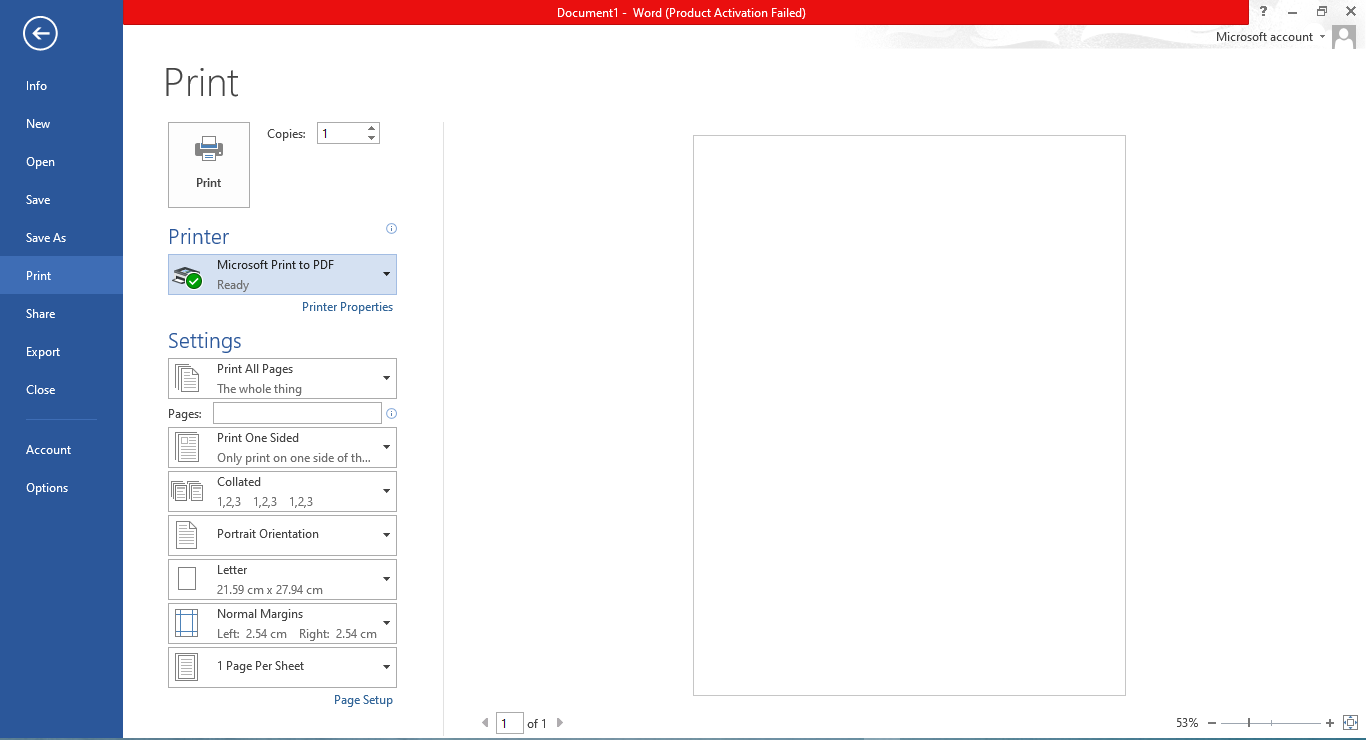
- Open your file.
- Press Ctrl + P or choose File → Print.
- Select Microsoft Print to PDF.
- Click Print.
- Choose folder and save.
Waarom deze methode veiliger is
No upload is required, your data stays on your device, and it works for Word, Excel and PowerPoint.
FAQ
Is this safe?
Yes, because the PDF is created on your device.
Laatste advies
For private documents, use Save As, Export or Print to PDF before using upload-based tools.
JPG naar PDF converteren